Appearance
Connect your Deutsche Bank accounts to Synthix Flow
To connect your Deutsche Bank (DB) bank accounts to Synthix Flow you must first be an active consumer of CB Connect.
CB Connect will ask you to provide the public key contained in your digital certificate issued by a trusted certificate authority. This public key is used by CB Connect to authenticate you on the API platform.
Once you are active on CB Connect, your bank account can be connected via a secure authenticated link between the two platforms. This is created by using both a public and a private key pair.
The private key on Synthix Flow must match with the public key set-up on CB Connect. Your private key is used to create a digital signature when connecting to CB Connect, and CB Connect validates that signature using your public key.
In case the signature is not validated due to incorrect key pair or if the key has expired, you can contact our support team at support@synthixflow.com.
Before a connection is enabled
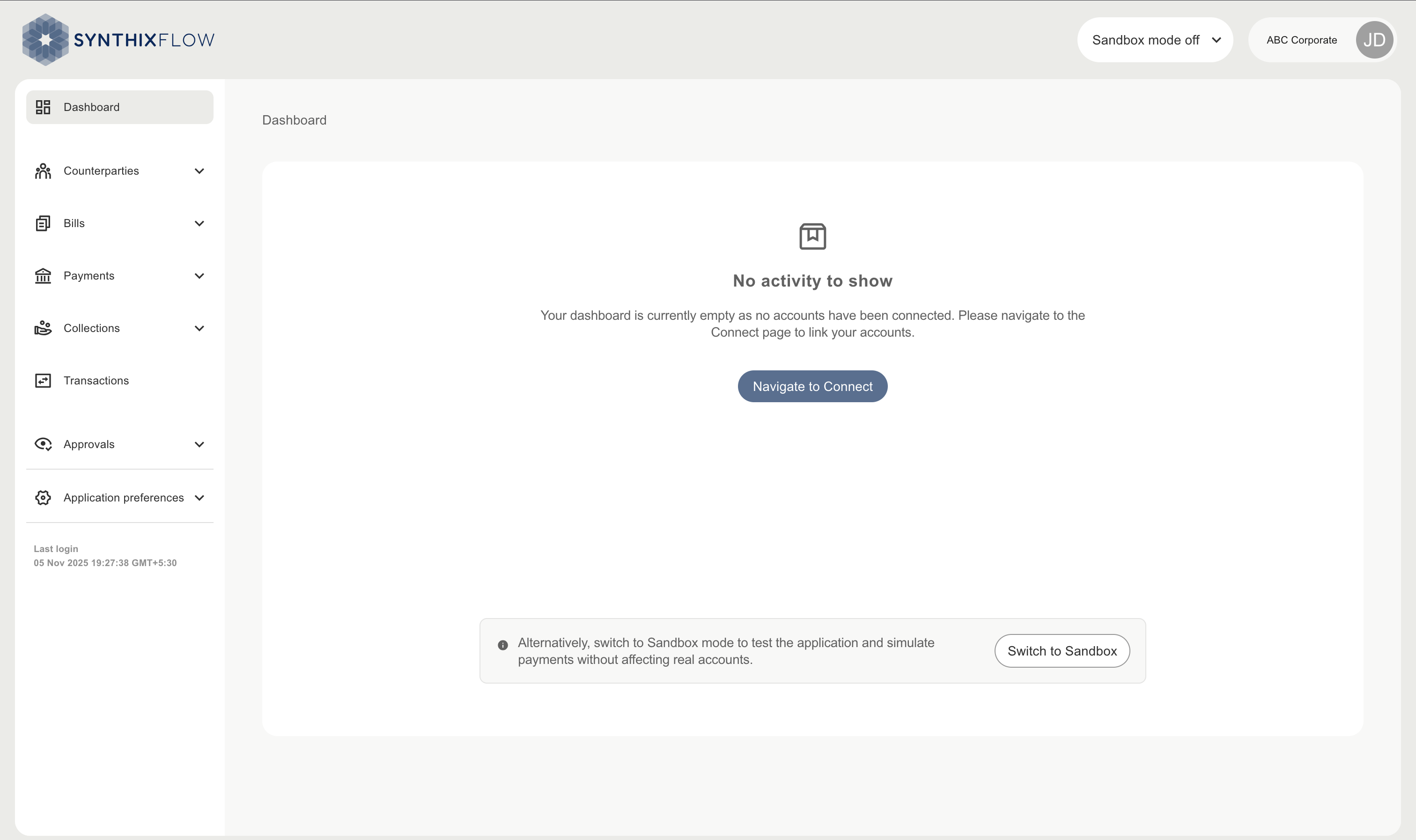
Before a connection is enabled you are able to explore the features available using Sandbox mode. However, a connection is required in order to see your bank account data or to fully utilise the Synthix Flow platform.
Connect your Deutsche Bank accounts
All connections can be managed from the “Connect” screen. This is where you go to connect your DB bank accounts.
Select “Enter private key” on the “Connect to your Deutsche Bank Accounts" card.
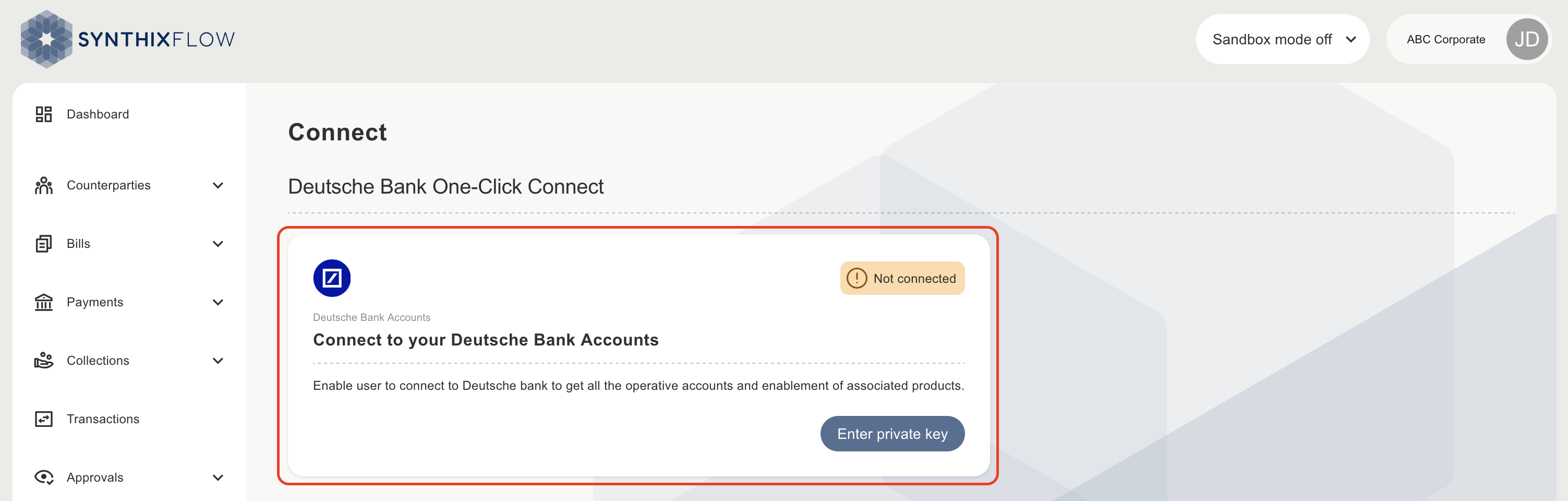
To connect Deutsche Bank accounts to your Synthix Flow account, click “Enter private key” on the “Connect to your Deutsche Bank Accounts" card.
Enter private key
Enter the private key that matches the public key you shared with CB Connect during your onboarding
Enter theKey ID provided by CB Connect.
Steps mentioned below for creation, download and extaction of private key.
Step 1 : Obtain the X.509 Certificate in .p12 Format
- Request the certificate from your Certificate Authority (CA).
- When exporting from a browser or keychain, choose PKCS#12 (.p12) format.This format bundles (Private Key, Public Certificate and Intermediate CA certificates).
- Set a passphrase during export (you’ll need this later). Step 2 : Extract Private Key on macOS or Windows
- You can use OpenSSL (pre-installed on macOS, will need installation on Windows). Convert .p12 to PEM
- '-nodes' ensures the private key is not encrypted in the output.
- You’ll be prompted for the .p12 passphrase.
openssl pkcs12 -in path-to-folder/certificate.p12 -out path-to-folder/certificate.pem -nodes- Split PEM into private key
# Extract private key
openssl pkey -in path-to-folder/certificate.pem -out path-to-folder/private.key
The private key should begin and end with the key begin and end markers. Sample key is shown here.
-----BEGIN PRIVATE KEY-----
<key contents>
 -----END PRIVATE KEY-----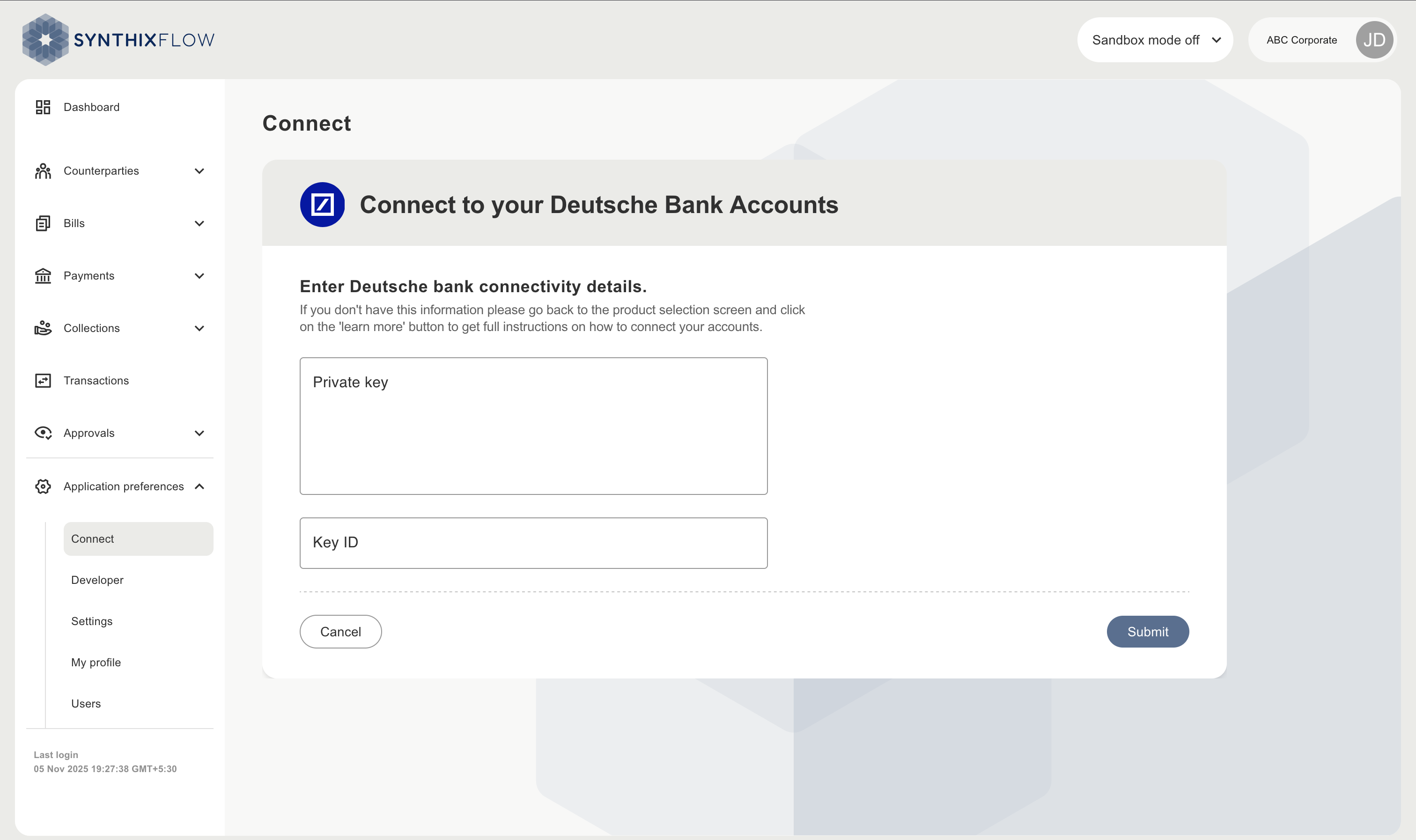
View connected accounts
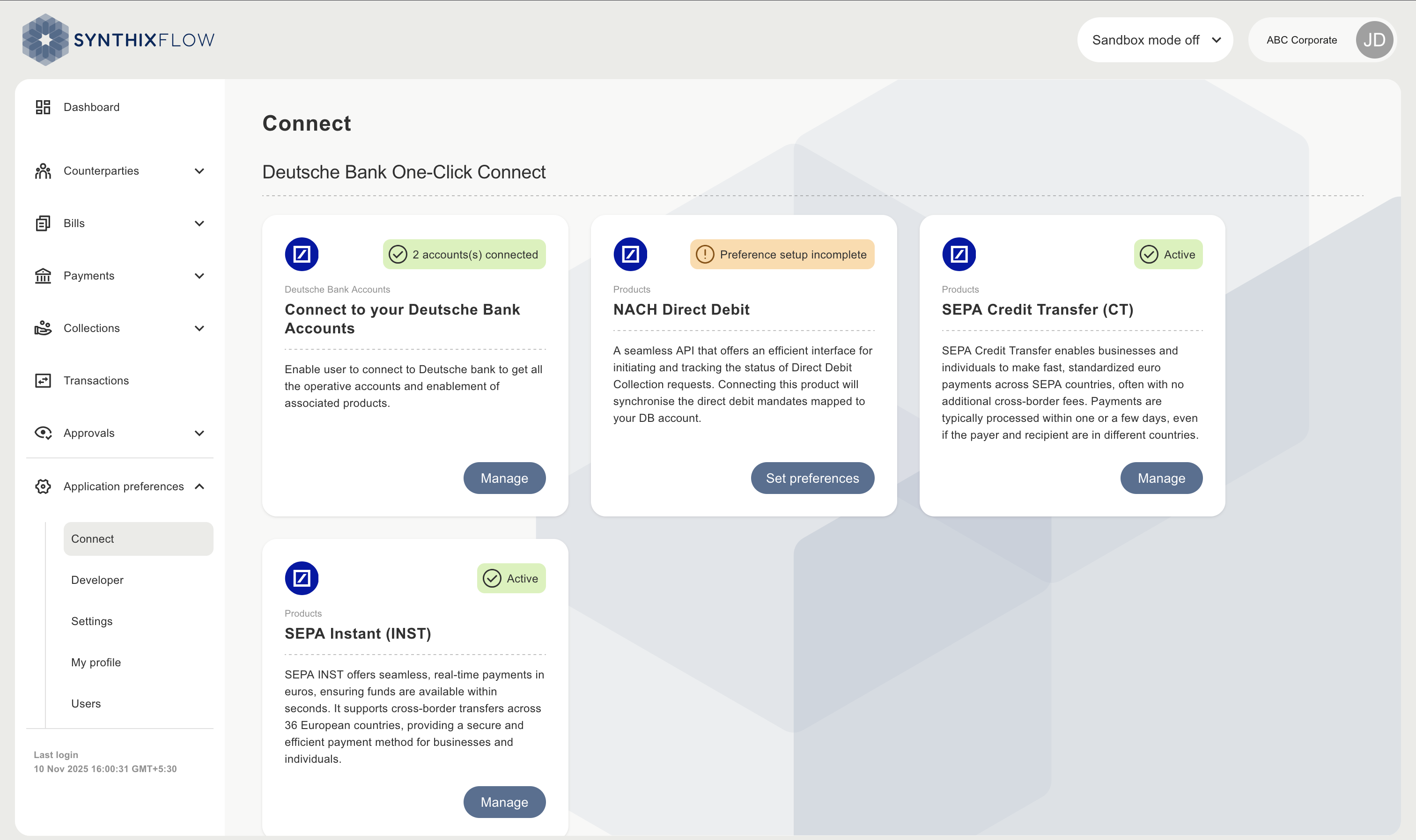
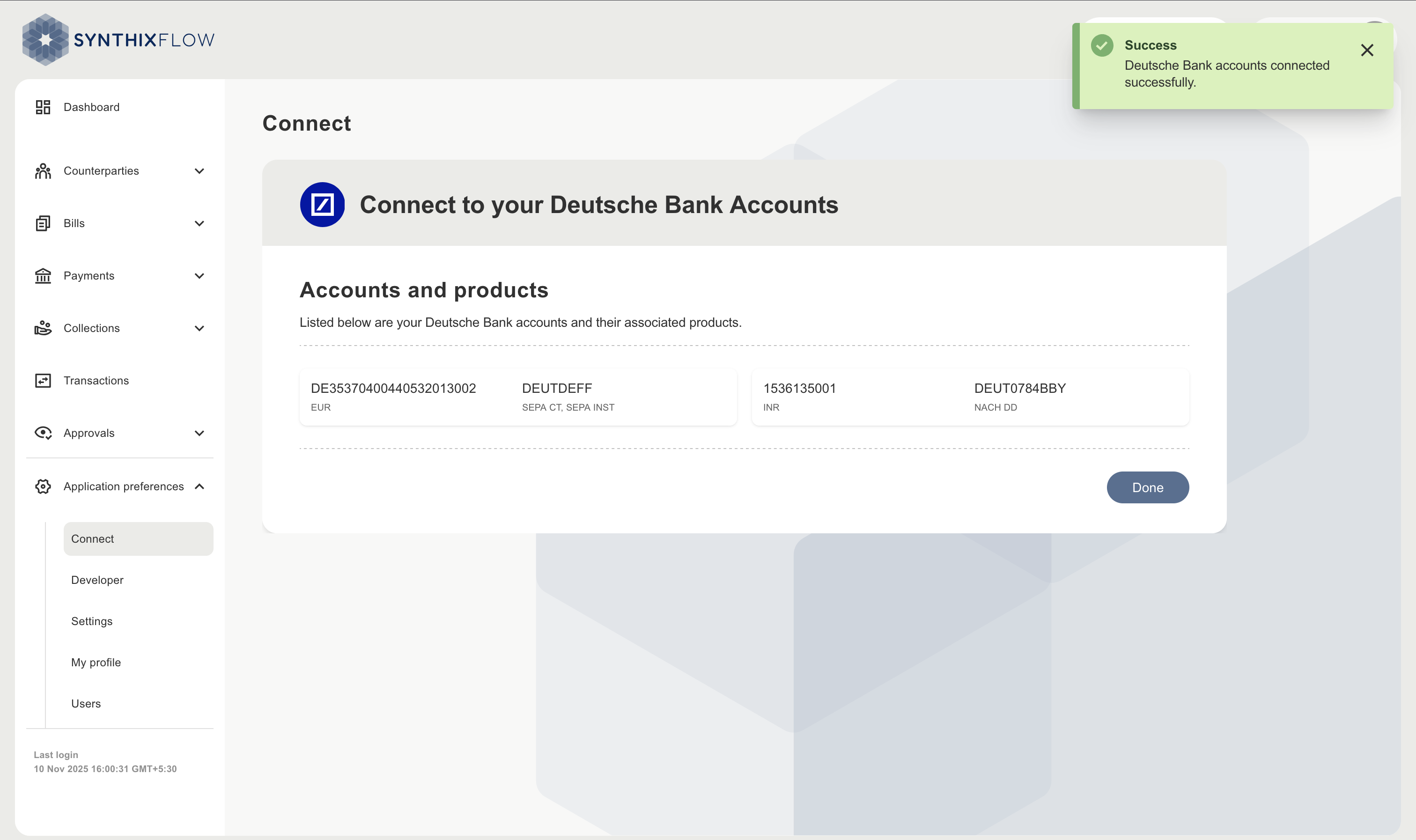
Once the key is validated, you will see a list of all of your connected DB bank accounts, along with the products enabled for each account.
View connected products
You can see all enabled products on the connect screen.