Appearance
Create a collection link
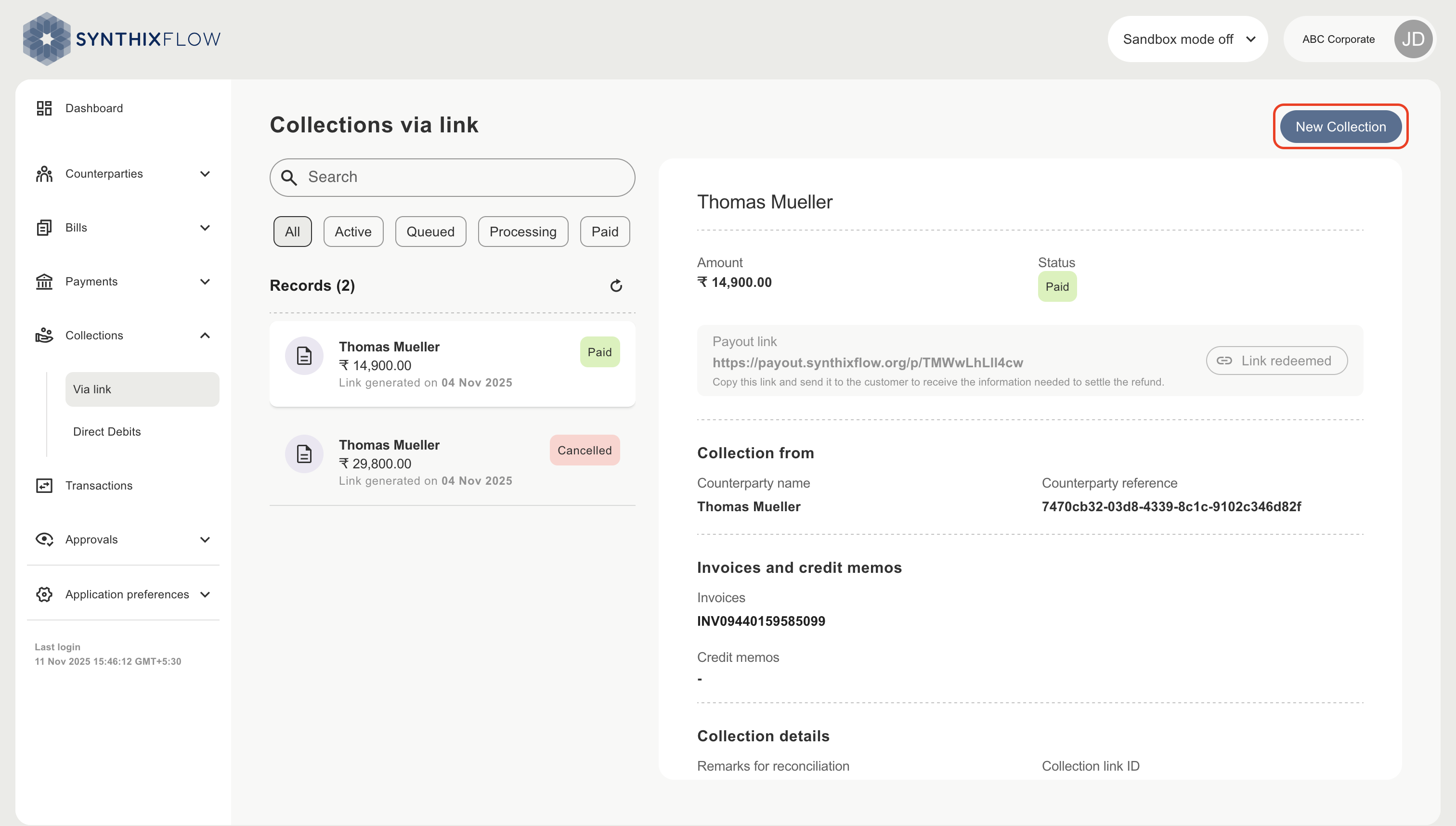
Go to the Via Link in the collections section and select “new collection”
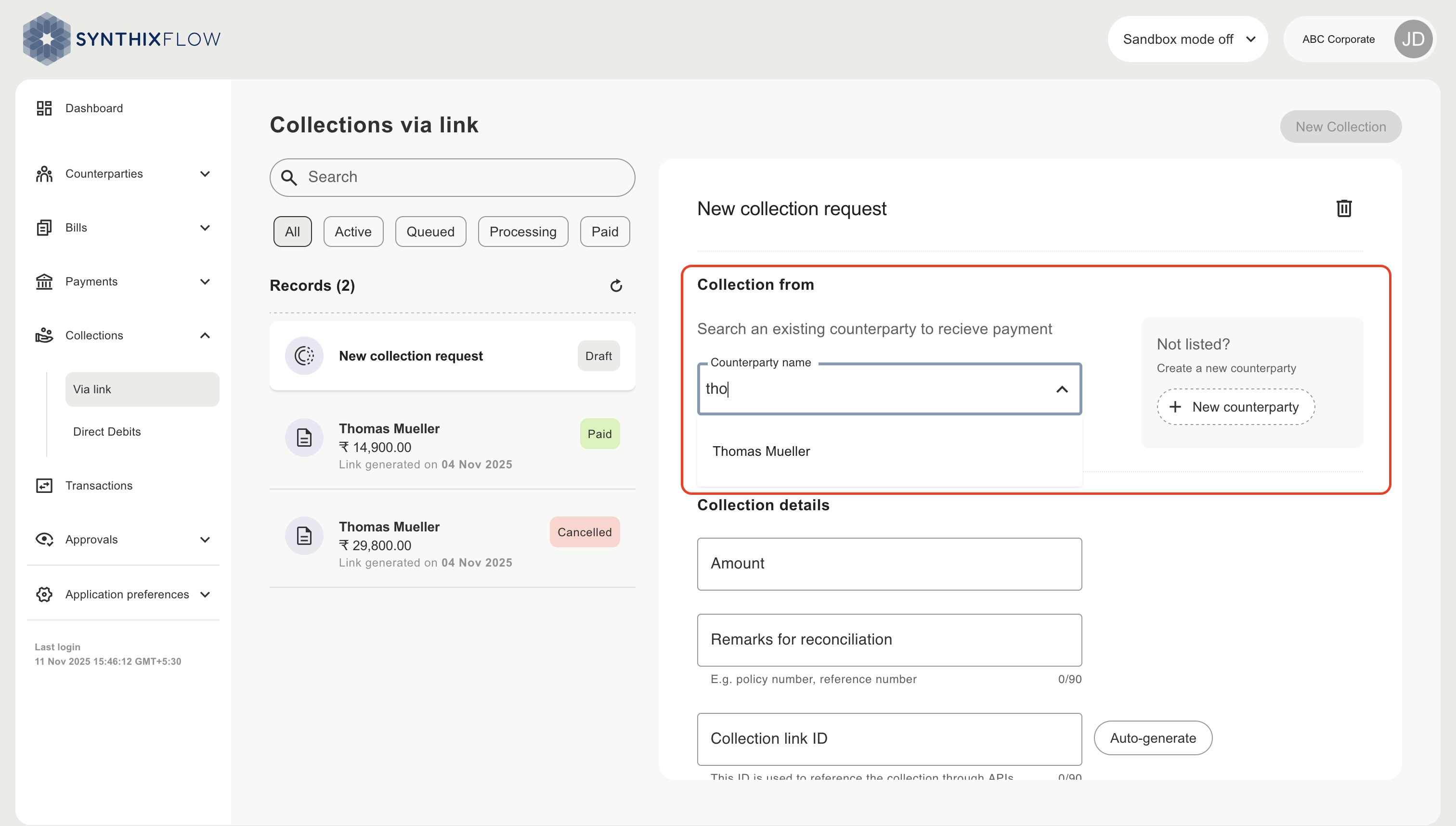
Choose the counterparty to pay, or alternatively create a new counterparty.
Collection via invoices
On setting the counterparty you will be shown all open invoices or credit memos due for payment. You can either select one or muultiple invoices and credit memos from here.
The invoices and credit memos can be synched from client's ERP using Bills POST API.
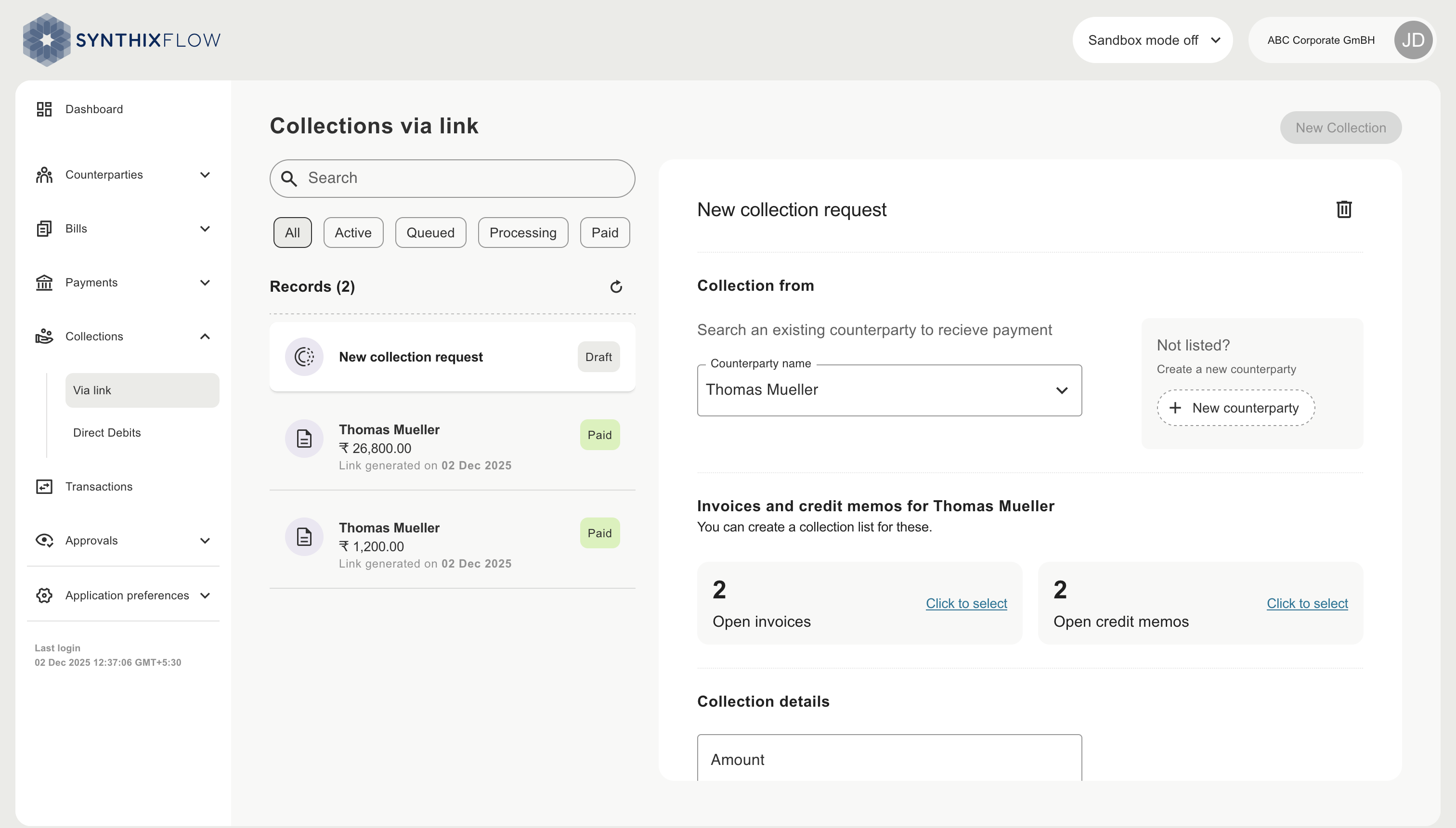
The invoices and credit memos available for the counterparty are visible on the screen
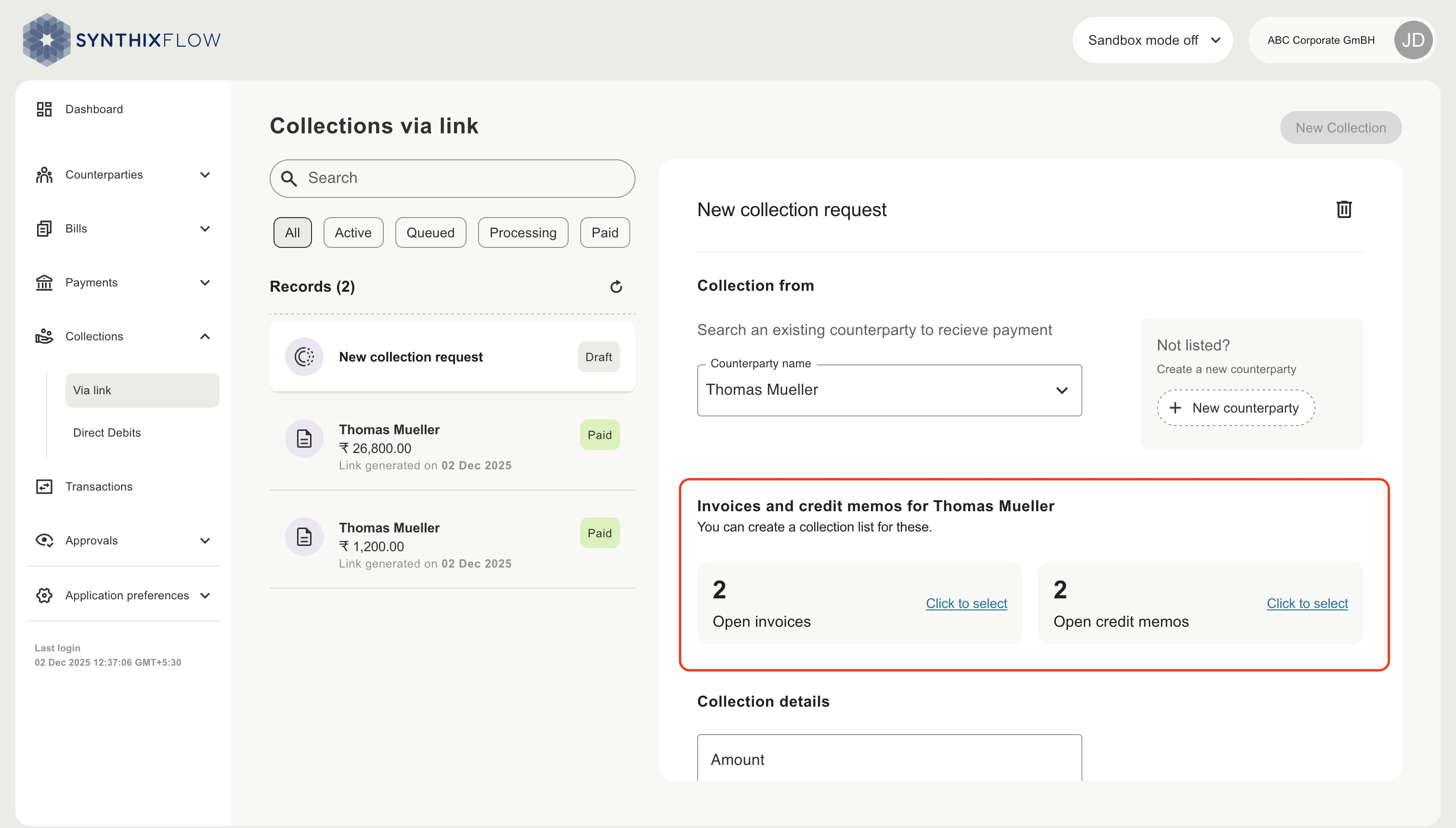
Select the invoices by clicking on "Click to select"
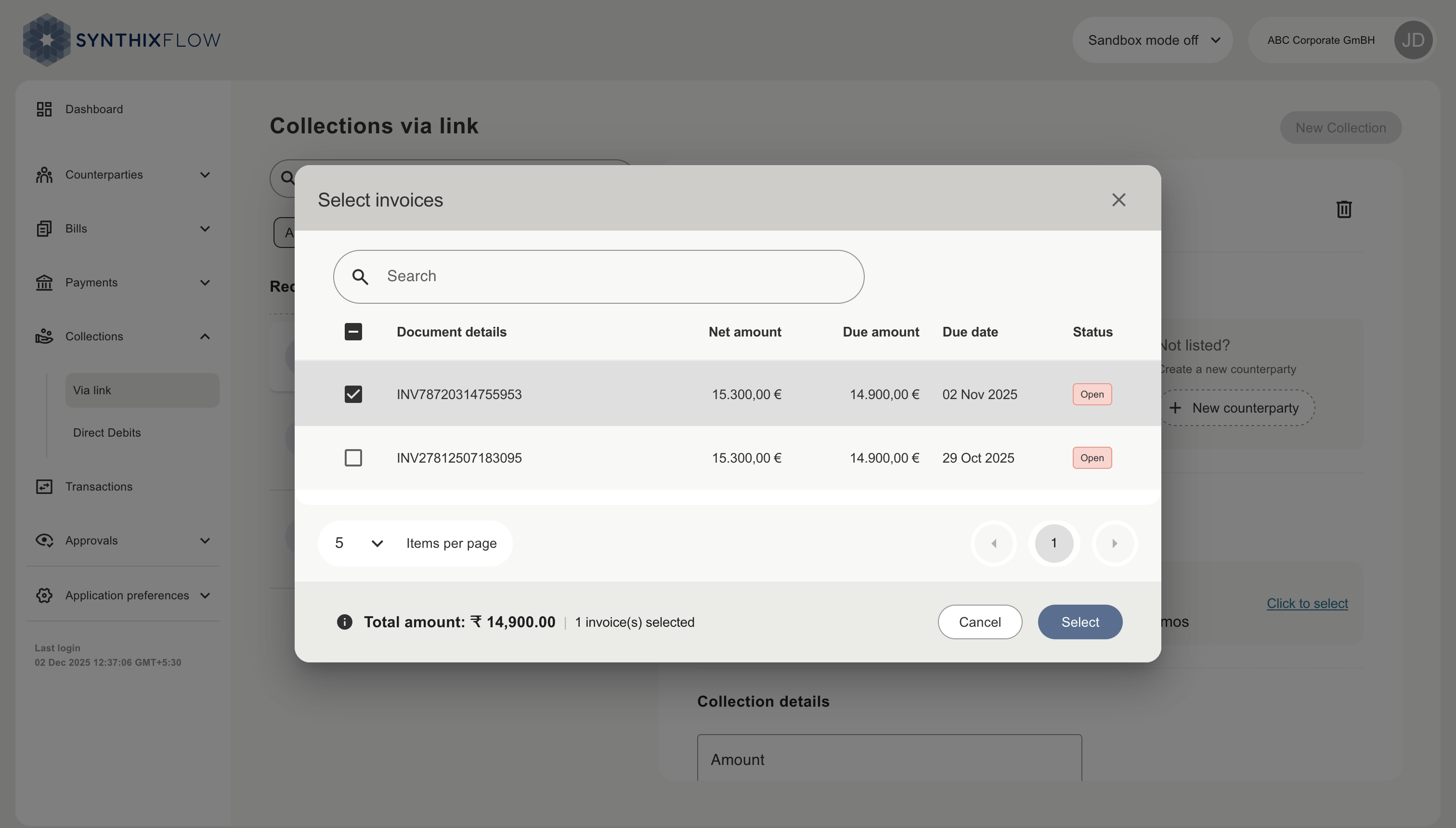
The invoices available can be selected on the screen.
Select the credit memos by clicking on "Click to select"
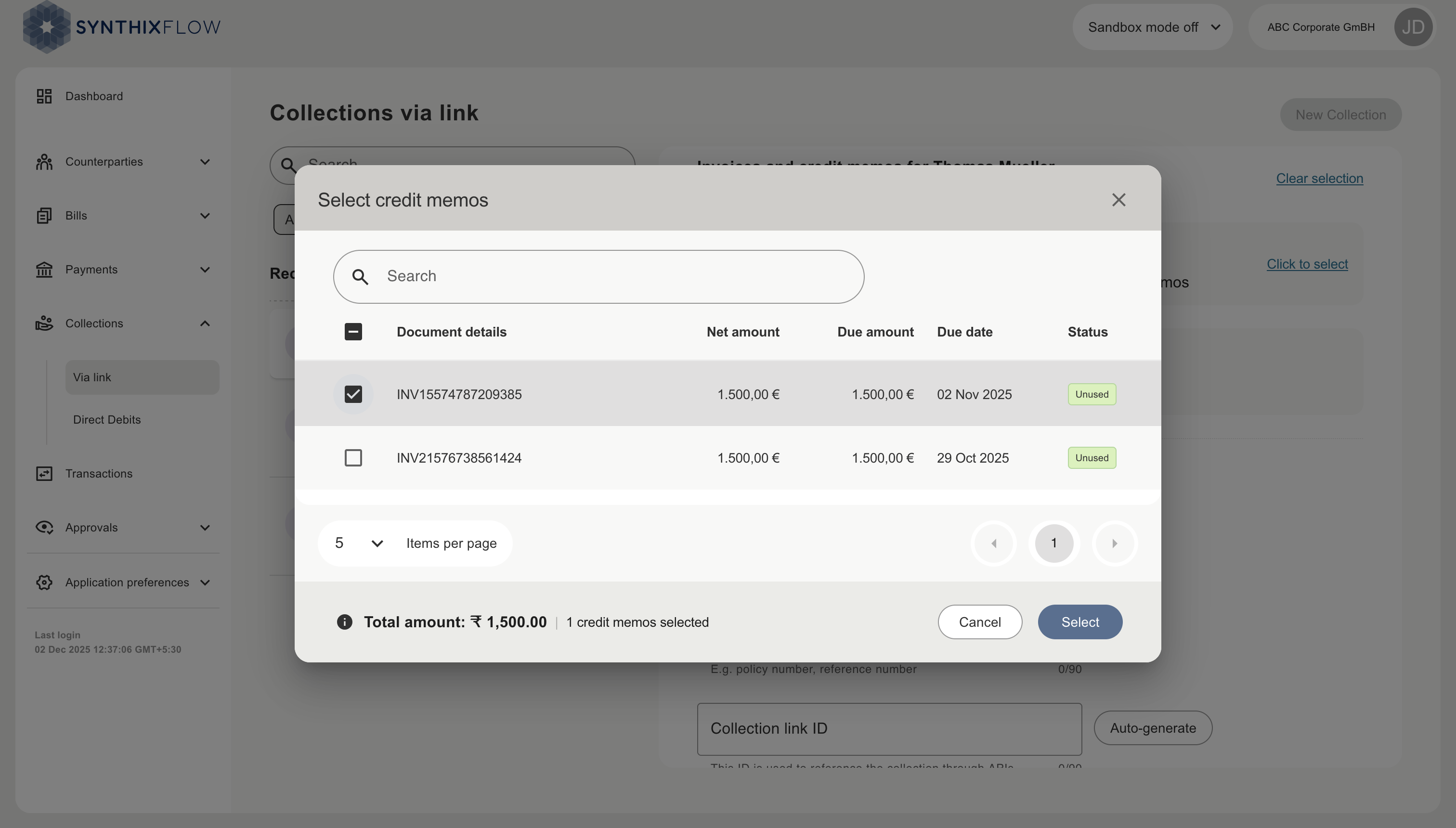
The credit memos available can be selected on the screen.
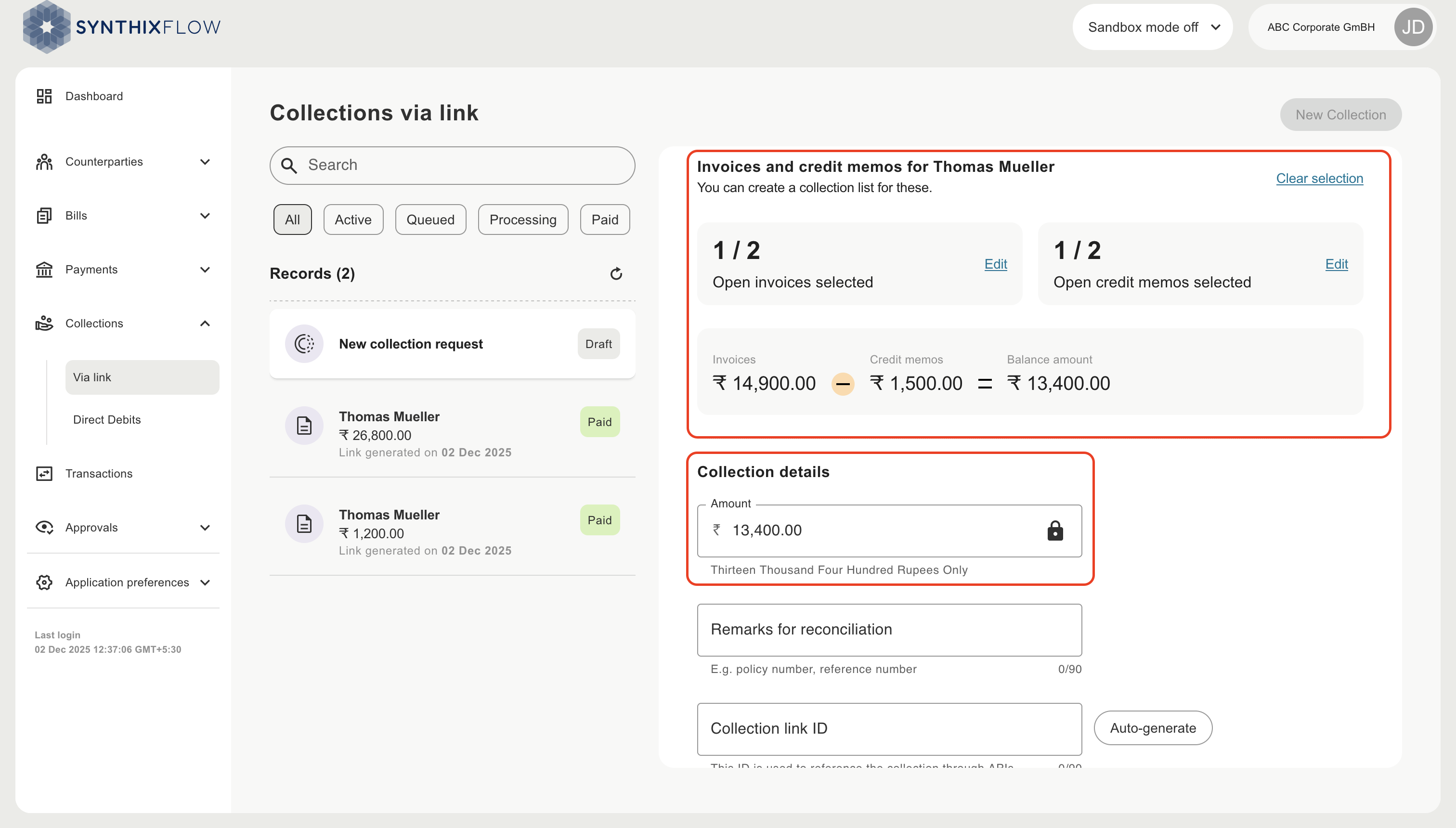
The system reconciles the selected invoices with the chosen credit memos and calculates the remaining payable amount.
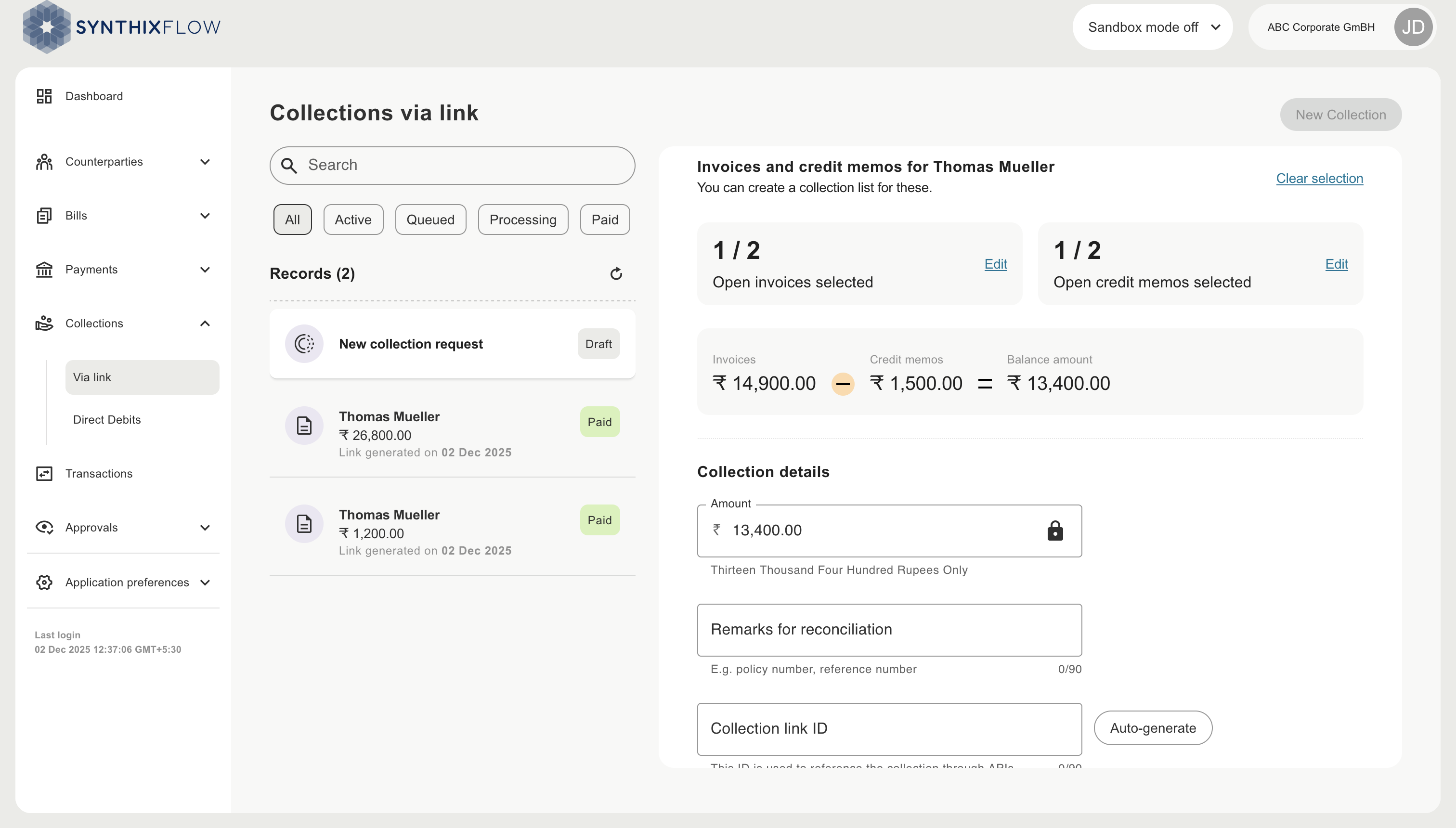
The payable amount is displayed in the Collections Details section under the Amount field. This field is read-only and cannot be edited.
Collection without invoices
Alternatively, you can enter the amount manually without selecting invoices or credit memos.
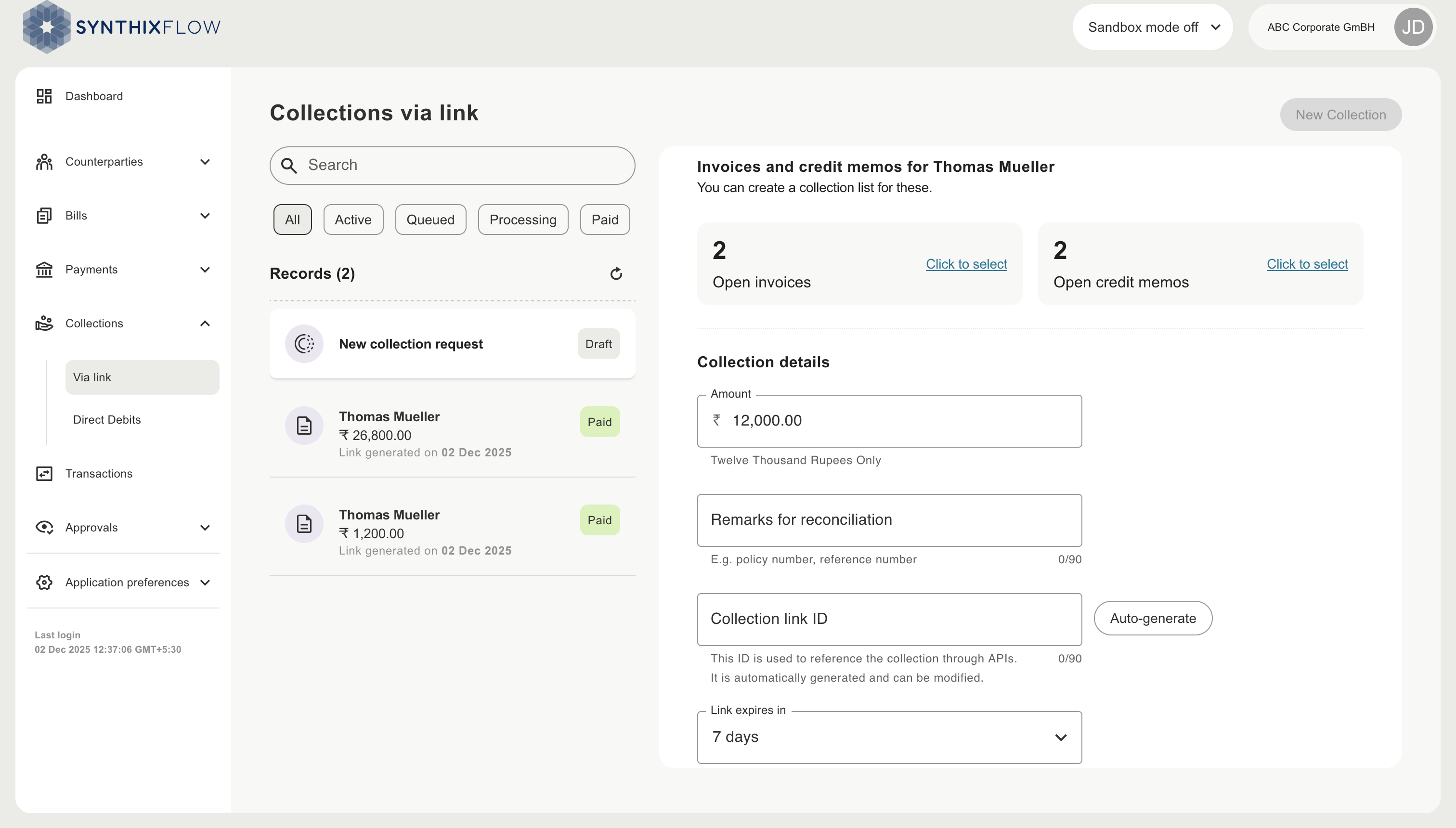
Enter collection details
Enter the details of the collection
| Remarks for reconciliation | Remarks that you can use to reconcile the collection in your ERP, CRM or other operational systems |
| Collection link ID | Unique identifier for the collection link, will be auto generated by Synthix Flow |
| Link expiry | The validity period for the link, after which the link will become invalid |
| Attach document (optional) | Attach invoices, memos, or any other additional document |
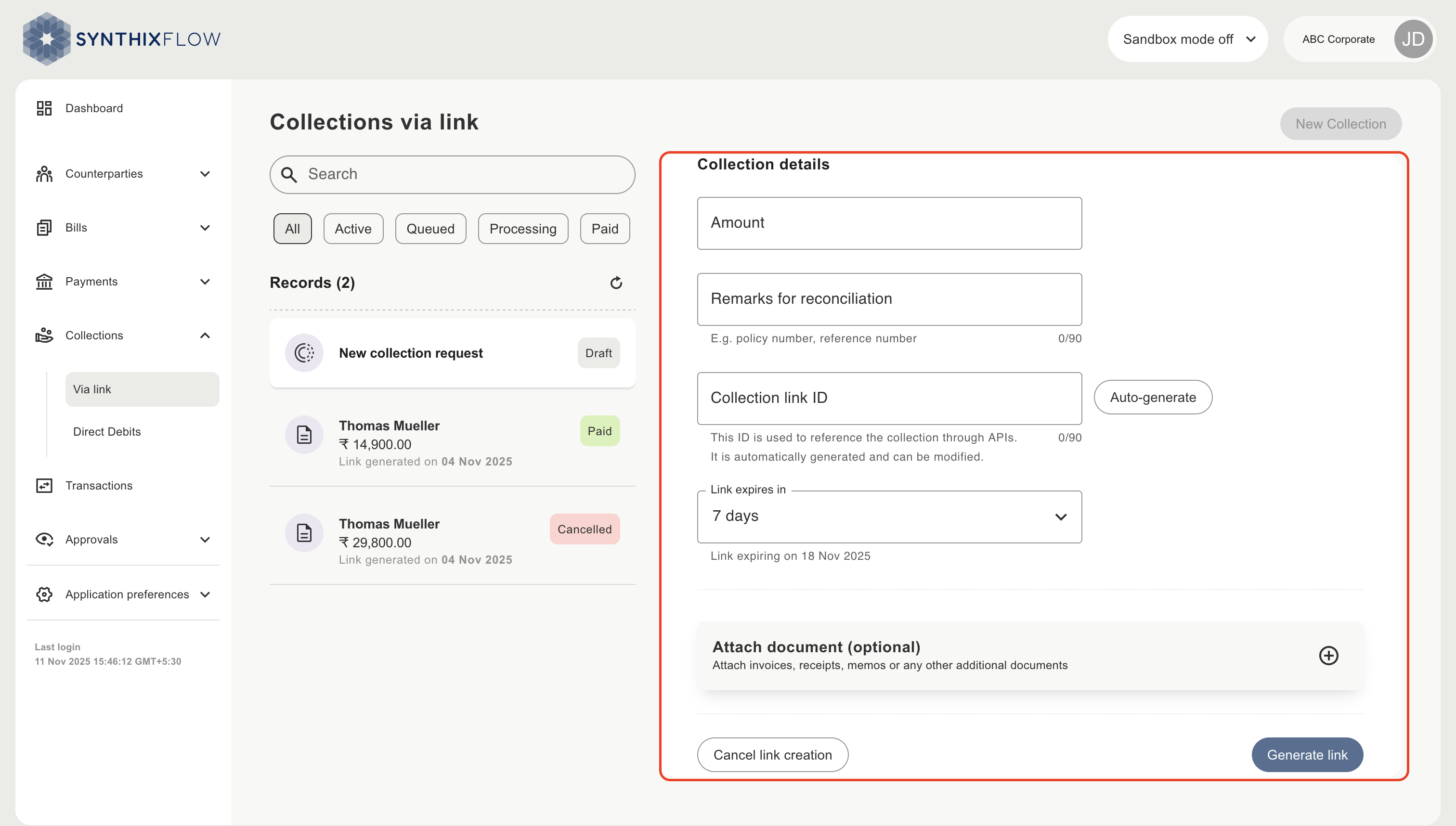
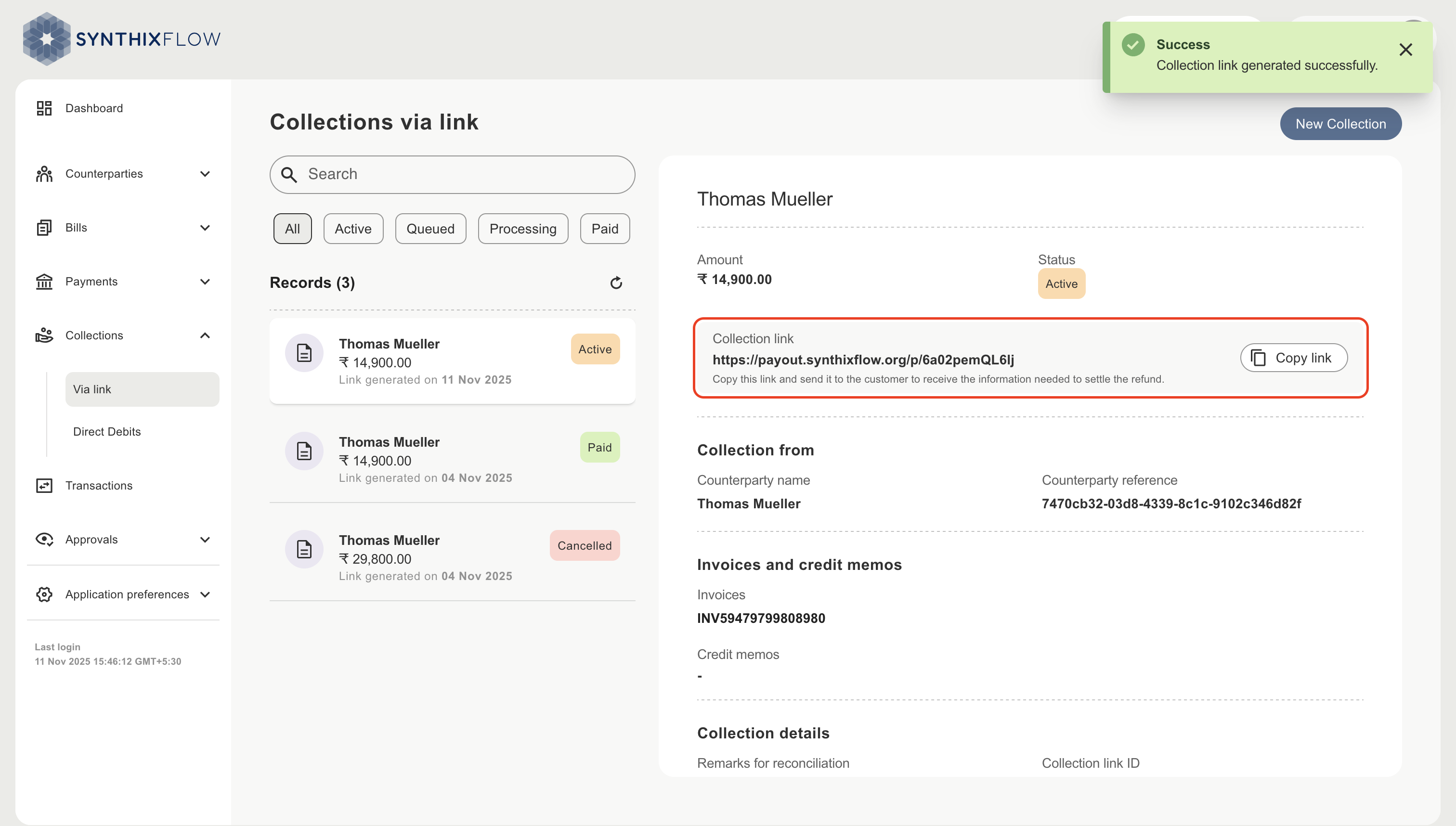
Generate the link
Click "Generate link" to get a unique link for the collection. You can copy this link and send this link to the counterparty. This link will open the Counterparty collection page