

Appearance
Create a Report
Generate a data export for your Payments activity by creating a new report with the filters you need.
Steps
1. Click New report in the top-right corner of the Reports page.
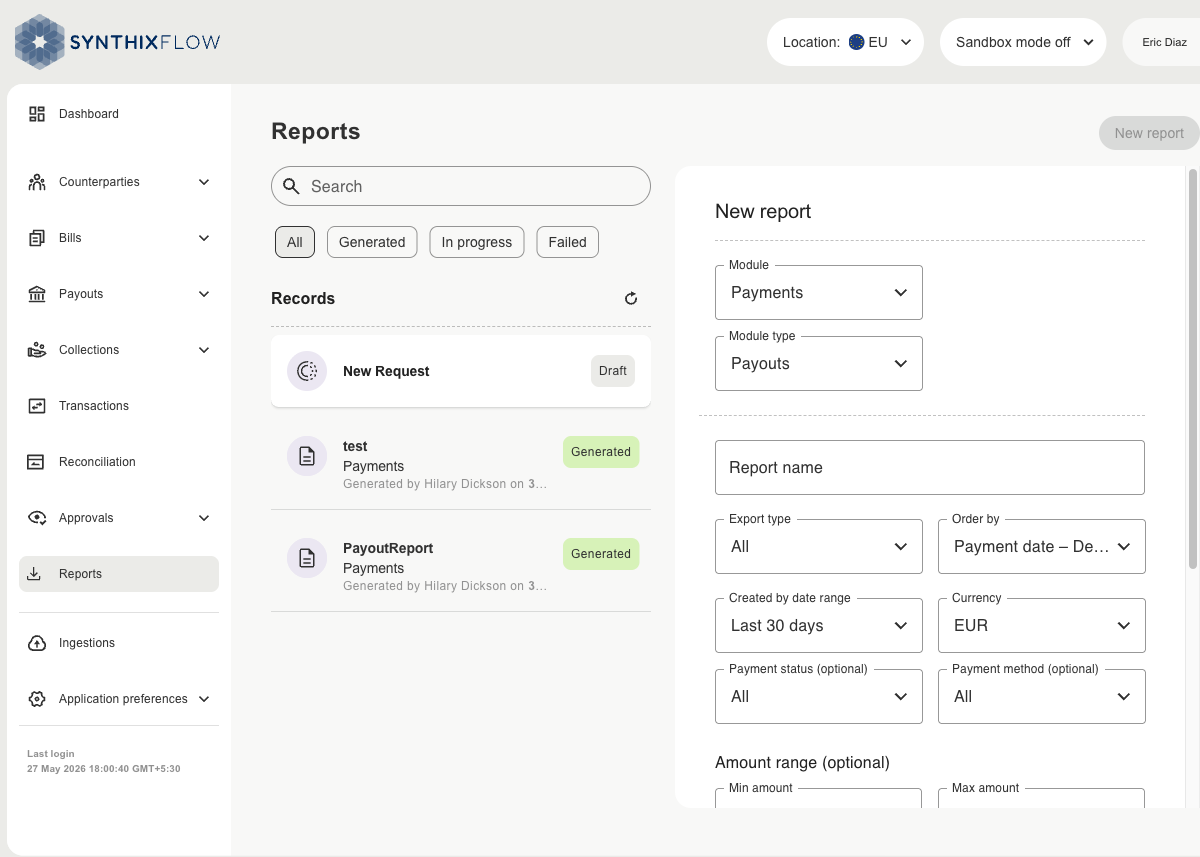
2. Select the Module and Module type to define the data to include.
3. Enter a Report name to identify this report in your records.
4. Set your filters:
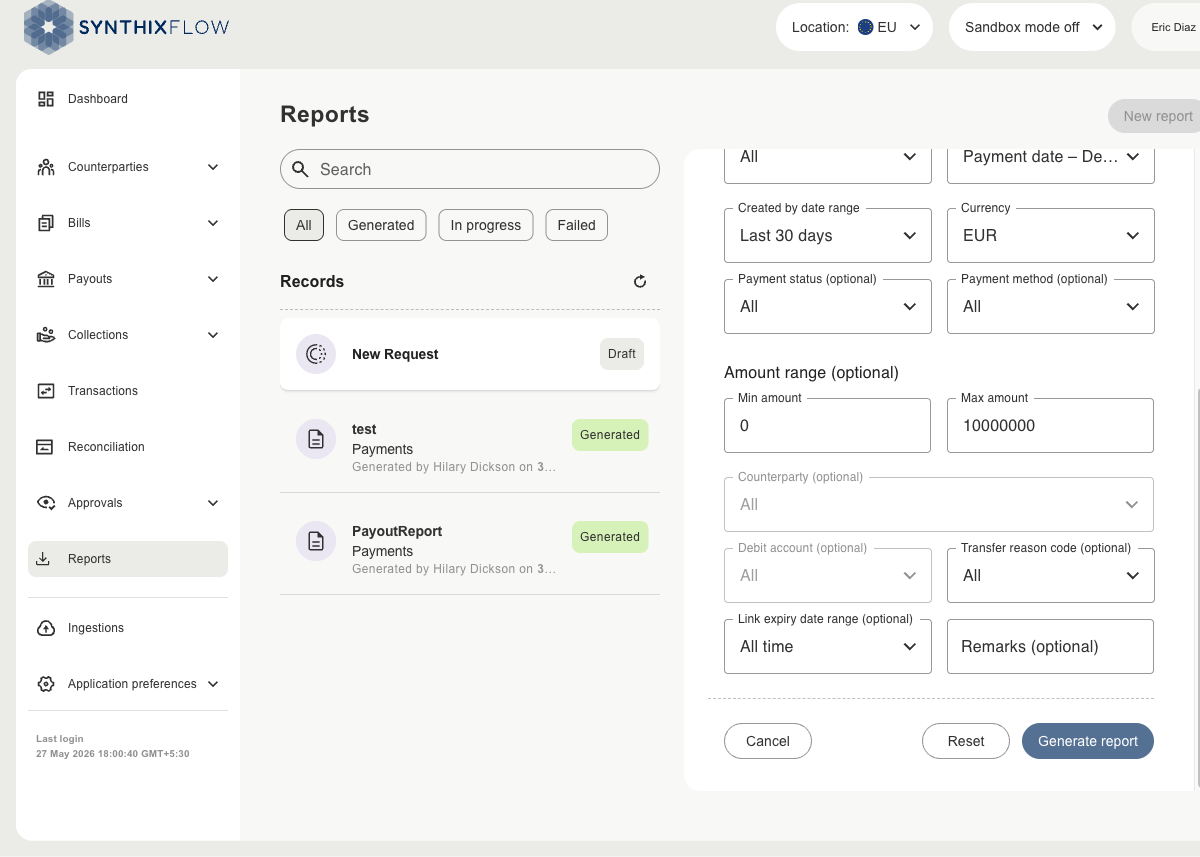
| Field | Description |
|---|---|
| Export type | Format of the exported data |
| Order by | Sort order for the records in the report |
| Created by date range | Restrict records to a specific date range |
| Currency | Filter by currency (defaults to your account currency) |
| Payment status | Filter by payment status (optional) |
| Payment method | Filter by payment method, e.g. SEPA CT, SEPA Instant (optional) |
| Amount range | Set a minimum and maximum amount (optional) |
| Counterparty | Filter by a specific counterparty (optional) |
| Debit account | Filter by debit account (optional) |
| Transfer reason code | Filter by transfer reason code (optional) |
| Link expiry date range | Filter by payment link expiry date (optional) |
| Remarks | Filter by remarks text (optional) |
5. Click Generate report. The report appears in the Records list with status In progress. Once complete, the status changes to Generated and the report is ready to download.
Use Reset to clear all filters back to their defaults, or Cancel to discard the report and return to the list.
To download a generated report, see Reports Overview.